Hover, and switch your browser profile quickly
Hover over a supported browser in the Dock and DockSpark shows your profiles. Pick personal, development, work, or private mode—no digging through menus.
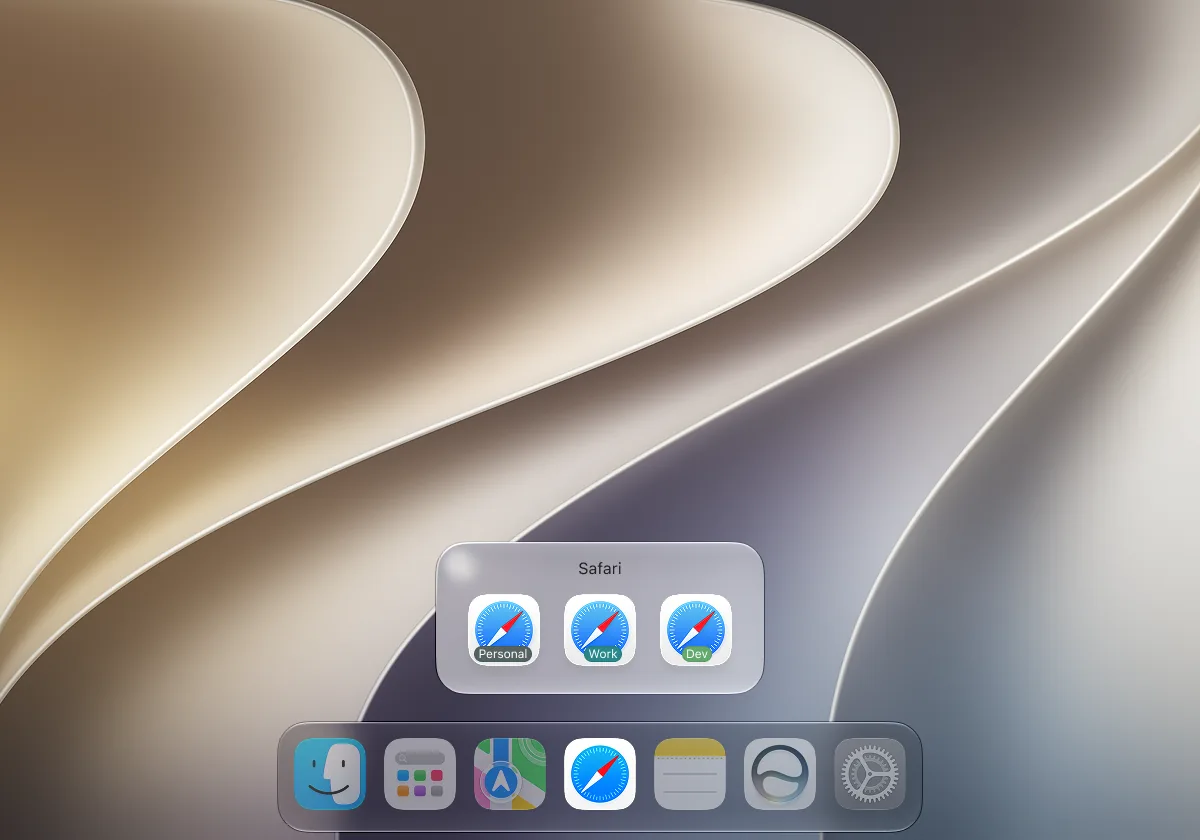
Supported browsers


Features
DockSpark puts browser profiles right in your Dock. It pops up when you need it and stays out of sight when you don't.
One-Click Profile Switching
Switch quickly between profiles in supported browsers, keeping different identities and task environments clearly separated.
Private & Incognito Browsing
Open a private or incognito window from the same panel, without navigating browser menus.
Native App
Built with Swift for a native macOS experience—not an Electron or web app. Only 9.3 MB on disk and 75 MB in RAM.
Visual Profile Management
Create, rename, set label colors, and reorder Profiles with drag and drop. Hide a named profile from the hover menu with Show in Dock without deleting it.
Adapts to your setup
Whether the Dock is at the bottom, left, or right, the panel sits beside the icon. You can move diagonally into the panel; the protected path stays active only while you continue toward it.
Running in the background
Closing the main window does not quit the app—hover access stays available.
Privacy
DockSpark uses macOS Accessibility and Automation APIs. It only requests permissions needed for the features you use, including Full Disk Access when reading Chromium or Firefox profiles.
Local app storage
Profile configuration is stored locally on your Mac, with no cloud sync. DockSpark uses TelemetryDeck for privacy-friendly app usage statistics.
Limited website analytics
The website uses Google Analytics to measure visits and usage. It does not use advertising trackers, accounts, or email signup forms.
Minimal permissions
Requests Accessibility and Automation when needed, and Full Disk Access only if Chromium or Firefox profile folders must be read. You can revoke each permission in System Settings.

Accessibility permission

Automation permission
Quiet in the background, instant when you need it.
After closing the main window, DockSpark keeps running. Reopen settings from the menu bar or Dock icon, or quit anytime. You can hide either icon in Settings. A protected hover path lets you move from a Dock icon into the panel; the panel dismisses when your cursor leaves both, so it does not stay on screen for long.
- Closing the window does not quit the app
- Show or hide the menu bar and Dock icons in Settings
- Press Esc or ⌘W to dismiss the panel
- Delayed dismiss after cursor leaves to reduce accidental closes
- Protected path from the Dock icon into the panel to avoid accidental switches
- Native macOS interactions and local configuration
Pricing
Choose a one-time license for 1, 2, or 5 Macs. Every plan unlocks unlimited browser apps and Profiles.
Free mode supports 1 browser and up to 3 named profiles. Download first, then buy a license when you need more. Download for free
1 Device
Unlock DockSpark on one Mac.
early-bird · one-time purchase
≈ $0.99 per Mac at early-bird
- License for 1 Mac
- Unlimited browser apps
- Unlimited Profiles
- Dock Hover panel
- Private Browsing / Incognito mode
- License email, recovery, and support
2 Devices
Unlock DockSpark on 2 devices.
early-bird · one-time purchase
- License for 2 Macs
- Unlimited browser apps
- Unlimited Profiles
- Dock Hover panel
- Private Browsing / Incognito mode
- License email, recovery, and support
5 Devices
Bring DockSpark to every Mac in your setup.
early-bird · one-time purchase
≈ $0.60 per Mac at early-bird
- License for 5 Macs
- Unlimited browser apps
- Unlimited Profiles
- Dock Hover panel
- Private Browsing / Incognito mode
- License email, recovery, and support
Frequently asked questions
Get answers to commonly asked questions.
Which apps does DockSpark support?
DockSpark 0.4.0 supports Safari, Google Chrome, Firefox, Chromium, Microsoft Edge, Brave Browser, Vivaldi, Opera, Opera GX, and Arc. Firefox Developer Edition and Nightly are not supported yet.
Why does DockSpark need Accessibility permission?
DockSpark uses the macOS Accessibility API to identify which Dock icon you're hovering over and its position. Without this permission, the Dock Hover panel cannot work.
Does DockSpark need Automation permission?
Some browser actions may require Automation permission. macOS will show a system authorization prompt the first time an action needs it, and you can change that permission anytime in System Settings.
Which permissions does DockSpark use?
DockSpark needs Accessibility permission to detect the Dock icon under your cursor. It requests Automation permission only when a browser action requires it. When Full Disk Access is needed to read Chromium or Firefox profiles, DockSpark explains why before opening System Settings.
Does DockSpark create browser Profiles?
No. Create profiles in your browser first. For Chrome-family browsers, the name you enter should match the browser's profile directory name, such as Default or Profile 1. Read the Chrome profiles guide.
How do I switch Chrome profiles from the Mac Dock?
Create the profile in Google Chrome first. In DockSpark, add it using Chrome's profile directory name, such as Default or Profile 1. Then hover the Chrome icon in the macOS Dock and choose the profile. See the full Chrome profile walkthrough.
Is configuration uploaded to the cloud?
No. Profile configuration is stored locally with SwiftData, and DockSpark has no accounts or cloud sync. TelemetryDeck receives only the privacy-friendly app usage statistics described in the Privacy Notice, not your profile configuration.
Does it work when the Dock auto-hides?
In typical setups, yes. DockSpark waits for the Dock to finish expanding, then positions the panel based on the icon location. Unusual Dock utilities or display arrangements can still affect placement.
Does it support vertical Dock and multiple displays?
The panel is built for Dock on the bottom, left, or right, and prefers the display under your cursor. If a setup still misplaces the panel, report it on GitHub Issues.
Why is the app still running after I close the main window?
DockSpark needs to run in the background to listen for Dock hover events. Reopen the main window from the menu bar or Dock icon, or choose Quit DockSpark to exit completely. If both icons are hidden, reopen DockSpark from Launchpad or Applications.
What is the minimum system version?
DockSpark requires macOS 14.0 or later.
Switch browser profiles faster.
Download DockSpark and put your browser identities right where you need them—on the Dock.
Or install the app with Homebrew
brew trust --cask dockspark/tap/dockspark && brew install --cask dockspark/tap/dockspark- Requires Accessibility permission
- Some browser actions may request Automation permission
- Reading Chromium or Firefox profiles may request Full Disk Access